Bookmark Backup: How to Export Safari and Chrome Bookmarks

· 4 min read
Frank
Bookmarks UniSync's Creator

Bookmark UniSync keeps your bookmarks in sync across Chrome, Edge and Safari. But before you sync anything, back up what you already have. Every browser can export its bookmarks to a single HTML file in under a minute, and that file is the only thing that lets you undo a bad sync, a wrong merge, or an accidental delete.

This guide covers the export for Safari and Chrome, and how to import the file back. If you are here to set up ongoing sync rather than a backup, go to how to sync bookmarks in Chrome, Edge and Safari instead.

Why do this first​

Bookmark sync is a write operation on data you cannot easily reconstruct. You have years of links in there, and you probably do not remember most of them. Once a tool has merged two mismatched bookmark trees, or overwritten one side with the other, the original state is gone — there is no undo button in any browser.

An exported HTML file costs you a minute and removes that whole class of risk. Keep it somewhere that is not the browser you are about to change.

Export Safari bookmarks​

  1. Open Safari on your Mac
  2. Go to File → Export → Bookmarks…
  3. Choose where to save the file (Safari names it Safari Bookmarks.html) and confirm

Safari bookmark export menu for creating a local bookmark backup

Safari exports your entire bookmark tree — folders, nested folders, and the reading list is not included. The result is a plain HTML file you can open in any browser to check it worked.

On iPhone or iPad: there is no export option in mobile Safari. Bookmark data on iOS lives in iCloud, so export from a Mac signed into the same iCloud account, or from iCloud.com if you have bookmarks syncing there.

Export Chrome bookmarks​

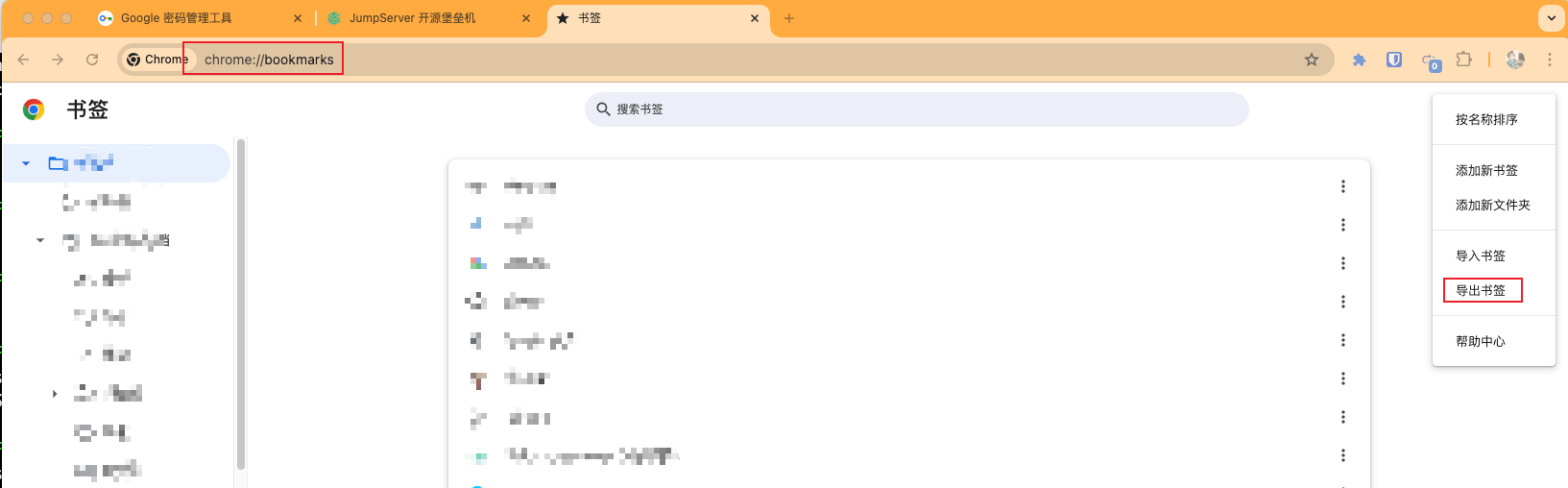
  1. Open Chrome and go to chrome://bookmarks — or ⋮ → Bookmarks and lists → Bookmark manager
  2. In the bookmark manager, click the ⋮ menu at the top right
  3. Choose Export bookmarks
  4. Save the HTML file

Chrome bookmark export menu for saving bookmarks as an HTML backup

Chrome writes every bookmark and folder into one HTML file. It does not include:

  • open tabs or tab groups
  • history
  • saved passwords (those live in Chrome's password manager and export separately)

Edge is the same four clicks​

Open edge://favorites → ⋮ → Export favorites. The file format is identical, so a Chrome export imports cleanly into Edge and vice versa.

Restore bookmarks from the HTML file​

The file you just saved is not a proprietary backup — it is a bookmarks HTML file, the same format every browser has used for twenty years. That means:

  • Chrome / Edge → bookmark manager → ⋮ → Import bookmarks → pick the file
  • Safari → File → Import From → Bookmarks HTML File → pick the file
  • Any browser → you can also just open the HTML file directly and click through the links

One thing worth knowing: importing generally adds the bookmarks rather than replacing what is already there. Chrome puts them in an "Imported" folder; Safari puts them in a folder named after the file. So if you are restoring after a mess, it is usually worth clearing the bookmarks you want to replace first, then importing — otherwise you end up merging the mess with the backup.

Backups are snapshots — sync is the ongoing answer​

A backup only captures the moment you exported it. Bookmarks you save next week are not in it.

That is the difference between a backup and sync, and it is the reason both exist:

Backup (this guide)Sync (a tool like Bookmark UniSync)
What it protectsData loss, bad mergesBrowsers drifting apart
How oftenWhen you rememberContinuously, in the background
Covers Chrome ↔ Edge ↔ SafariOnly via manual importYes, into the native bookmark bar

The practical routine: take one backup before you set up sync, then let sync keep the browsers aligned. You can read more about the data safety side in the FAQ, or see the comparison of sync tools if you are still choosing one.

One rule: keep a copy before you switch tools​

Even if you find a tool useful, it's highly recommended to save a separate copy of your data beforehand. If the tool doesn't meet your expectations, you can restore your original data at any time, minimizing the risk of data loss.