How to Remove Duplicate Bookmarks: One-Click Cleanup in Bookmark UniSync

When the same URL appears in Work, Study, and Read Later, your bookmark bar becomes hard to use. Good duplicate bookmark cleanup is not about deleting every similar title. It is about matching exact URLs first, then letting you decide which copy to keep.
This Bookmark UniSync update adds one-click bookmark deduplication. It scans bookmarks, groups exact URL matches, shows each folder path, and creates a local backup before anything is deleted. This guide explains why duplicates appear, how to remove them safely, and how to avoid creating more duplicates across browsers.
Contents
- Why duplicate bookmarks appear
- How to remove duplicate bookmarks safely
- What this update changes
- Avoiding duplicates during cross-browser sync
- A unique SVG avatar
- Frequently asked questions
Why duplicate bookmarks appear
Duplicates usually come from normal browsing habits, not a browser bug. You may save a page in Chrome and save it again in Edge or Safari, or create a second copy simply because you cannot remember which folder contains the first one.
Common causes include:
- The same URL saved in different folders;
- Importing an HTML bookmark file and then syncing cloud bookmarks back;
- Saving the same page on several devices;
- A changed page title with the same URL.
The same title does not always mean the same page, and different titles can still point to the same URL. Use the URL as the primary check, then review the folder path before deleting anything.
How to remove duplicate bookmarks safely
Step 1: Save an original backup
Export your current browser bookmarks first, or confirm that Bookmark UniSync has a restorable bookmark version. Keep one untouched copy locally.
Step 2: Scan for duplicates
Open bookmark management in Bookmark UniSync and start the duplicate scan. The tool matches bookmarks by exact URL, so copies of one URL in different folders appear in the same group.
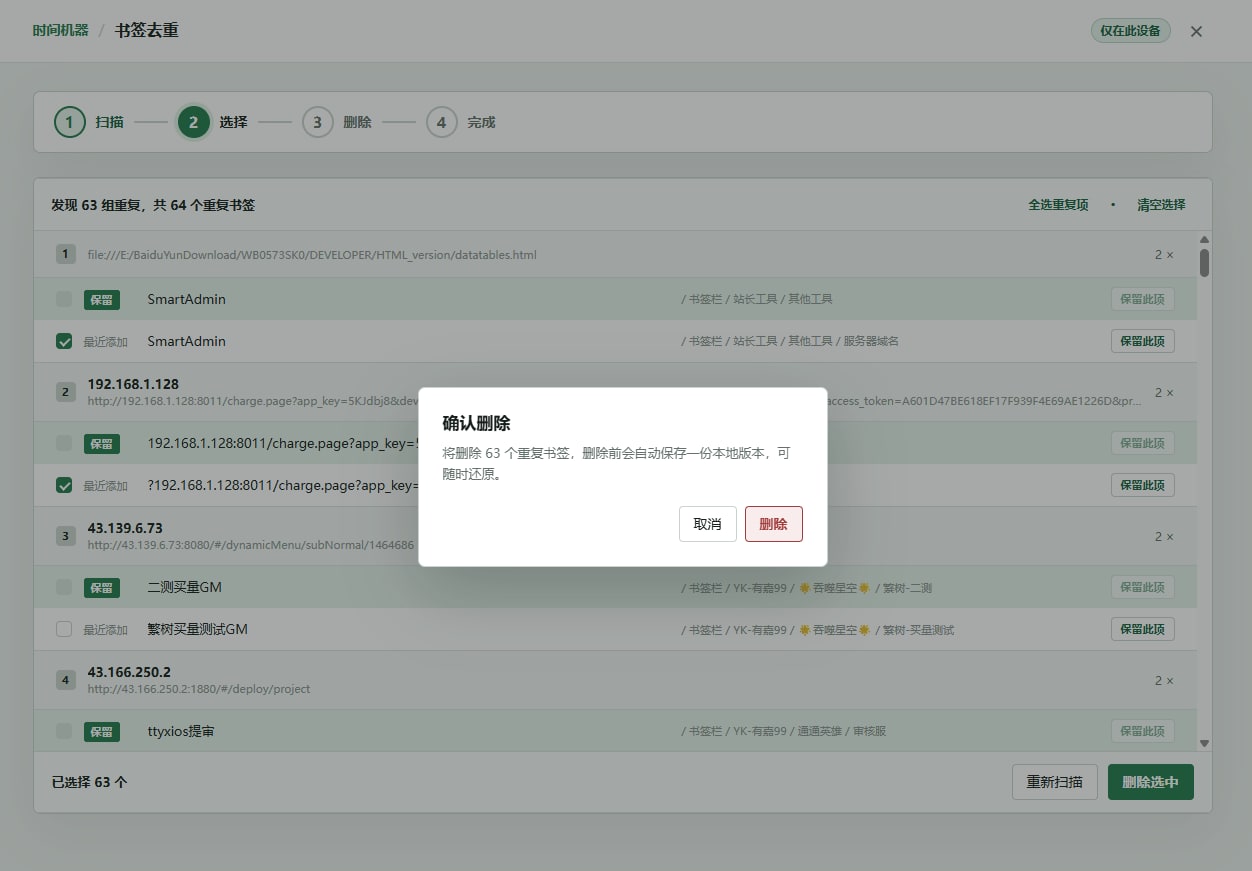
In the example scan, 63 groups containing 64 duplicate bookmarks were found. Each result includes the URL, title, and folder path so you can choose the best copy to keep.
Step 3: Review each group
Keep the bookmark with the clearest title, most useful folder path, or most recent use. Be careful with login pages, query parameters, and pages that require special access. Open the links when the URL alone is not enough to confirm a duplicate.
Step 4: Delete and verify the sync result
Select the copies to remove and confirm. Bookmark UniSync saves a local backup before deletion, then syncs the result to connected browsers. Afterward, check at least 5 frequently used folders to confirm that names, links, and folder levels are correct.
Safety tip: If the result is unexpected, pause syncing before restoring from a backup or bookmark sync history. Do not manually delete the same set in several browsers at once.
What this update changes
Exact URL matching
Deduplication uses exact URLs instead of comparing titles or site names. True duplicates are grouped together, while pages with different paths or parameters remain available for review.
Backup before deletion
A local backup is created before each deletion. You can clean up first, inspect the result, and restore the earlier version if something is wrong.
Your native bookmark bar stays familiar
The cleaned result returns to the browser's native bookmark bar. Bookmark UniSync syncs bookmarks across Chrome, Microsoft Edge, and Safari while preserving the existing folder structure where possible. See the Bookmark UniSync user guide for the full workflow.
Avoiding duplicates during cross-browser sync
Deduplication cleans up duplicates that already exist. To prevent new ones:
- Choose one browser as the initial bookmark source;
- Export backups from the other browsers before syncing;
- Check folder counts and important links after the first sync;
- Enable automatic sync or add other devices only after the result looks right.
For Chrome and Edge, read How to sync bookmarks across Chrome, Edge, and Safari. Safari syncing also requires the macOS companion app; see why Safari bookmark sync needs a macOS app.
A unique SVG avatar
This release also generates a unique SVG avatar for every account. It is calculated from account information rather than selected from a fixed image library. SVG stays sharp when resized and works well across account pages and screen sizes.

The avatar is a small experience improvement; duplicate cleanup and backup recovery are the core changes in this release.
Frequently asked questions
How can I delete duplicate bookmarks without deleting the wrong one?
Back up first, group by exact URL, and review each group using its title and folder path. Do not delete based only on a domain name or similar title. Check several common folders after the cleanup.
Will deduplication remove bookmarks from different folders?
It groups entries with the same URL but does not automatically delete every result. You choose which copies to remove, so a version in another folder can remain.
Can Chrome, Edge, and Safari be deduplicated together?
Sync the browser bookmarks to one Bookmark UniSync account, then scan the combined result. Safari requires the macOS companion app. Export an original backup from each browser before the first cross-browser sync.
Can I restore bookmarks after deletion?
Yes. A local backup is created before deletion, and bookmark sync history can also be used for recovery. Pause other devices before restoring so an incorrect result does not overwrite the recovered version.
Conclusion
The goal of duplicate bookmark cleanup is a bookmark bar that is easier to search, not a smaller number at any cost. Bookmark UniSync combines exact URL matching, group-by-group review, and automatic backups before deletion, then keeps the cleaned native bookmark bar synced across Chrome, Edge, and Safari.
If your bookmarks are already cluttered, install the Bookmark UniSync browser extension, make a backup, and start the scan.
Related links