Bookmark Manager vs Native Bookmark Sync

After running Bookmark UniSync for more than a year, we keep seeing the same mismatch: people search for a bookmark manager when what they really want is to keep bookmarks consistent across Chrome, Edge and Safari. Others make the opposite mistake. They want tags, page archives and a research library, but install a tool built mainly to sync existing browser bookmarks.
Over that time, we have collected plenty of feedback and watched long-time users move from basic Chrome–Edge syncing to Safari support, version history, bookmark sharing and tab controls. As the product grew, the boundary became more important, not less: a bookmark manager puts links in a separate library; native bookmark sync lets you keep using the bookmark bar built into your browser. Neither is universally better.
This is not another comparison where the product with the longest feature list wins. Drawing on more than a year of operating the service, we will compare entry points, data flow, recovery and extra features so you can choose the right category before moving your bookmarks.
The short answer: which one should you choose?
| What you actually need | Better fit |
|---|---|
| Organize research with tags, full-text search and page archives | Standalone bookmark manager |
| Use the same bookmarks in Chrome, Edge and Safari | Native bookmark sync |
| Avoid opening another dashboard to find a link | Native bookmark sync |
| Save snapshots in case the original page disappears | Bookmark manager with archiving |
| Recover after a mistaken deletion or bad sync | Sync tool with version history |
| Turn a group of bookmarks into a link for someone else | Manager or sync tool with sharing |
Ask yourself one question:
Do I want to build a new collection system, or keep my current browser bookmark bars in sync?
Choose a bookmark manager for the first job and native bookmark sync for the second. In more than a year of operation, we have seen users try several products before realizing the problem was not missing features. They had simply chosen the wrong type of tool.
What is a bookmark manager?
A bookmark manager normally has its own website, desktop app or extension interface. Saved links live in its library instead of depending only on the browser's built-in bookmark bar.
These tools often focus on:
- tags and flexible collections;
- full-text search and notes;
- page snapshots or read-later workflows;
- card, cover and list views;
- shared or team libraries.
If you collect research papers, competitor examples or material for content planning, a standalone manager can work very well. Think of it as a knowledge base made of links.
The tradeoff is a new habit. You must remember which library received a link and open that manager when you need it. Its collection and your browser bookmark bar are not automatically the same dataset.
What is native bookmark sync?
Native bookmark sync does not ask you to replace the browser's interface. It keeps the bookmarks that already live there consistent.
Add a link to a “Work” folder in Chrome and it can later appear in the native bookmark bar in Edge or Safari on a Mac, with the same folder structure. You can continue using Ctrl+D, the star button, the bookmark bar and the browser's built-in manager.
That is also the difference between one-browser account sync and cross-browser sync:
- Chrome Sync mainly synchronizes Chrome with Chrome;
- Microsoft Edge Sync mainly synchronizes Edge with Edge;
- iCloud mainly synchronizes Safari across Apple devices;
- cross-browser bookmark sync connects these separate ecosystems.
If your goal is one bookmark set across Chrome, Edge and Safari, see our complete cross-browser bookmark sync guide.
Four differences that matter in daily use
1. Entry point: separate library or native bookmark bar
A bookmark manager concentrates more features in its own interface. A native sync tool writes changes back to the browser bookmark bar, shortening the path between finding and opening a link.
When Bookmark UniSync first launched, its home screen was closer to a collection of sync buttons. Long-time users did not keep asking where a button was. They wanted to know whether the latest sync had succeeded and whether local and cloud data matched. That is why the current screen shows local bookmark count, cloud bookmark count, connection status and last upload time. Automatic sync can stay enabled, while Upload and Sync from Cloud remain available for deliberate manual actions.
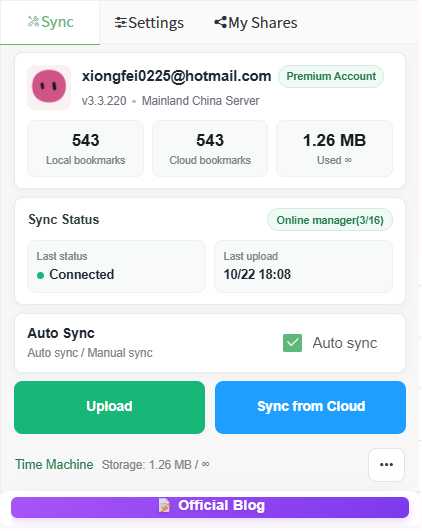
The home screen puts local data, cloud data and sync status together so you can check before acting.
The interface controls synchronization; it does not replace the place where you use bookmarks. You can still return to the familiar native bar in Chrome, Edge or Safari.
2. Data flow: save another copy or maintain consistency
A conventional bookmark manager is like another warehouse for links. Native bookmark sync must continuously handle additions, renames, moves and deletions, then carry those changes to other browsers.
Do not judge a sync tool only by whether it supports import. Import is a one-time move; sync maintains consistency over time. Exporting and importing an HTML file does not solve the next change you make tomorrow.
Cross-browser syncing should answer three questions:
- Does it preserve nested folders?
- How does it handle duplicates and conflicts?
- Can you return to an earlier state after a mistake?
3. Recovery: is there a version history?
Sync changes real data. Being able to synchronize is only half the job; being able to recover matters just as much. Before merging browsers, reorganizing folders in bulk or deleting duplicates, keep a separate backup.
Time Machine was not added merely to lengthen the feature list. As the service matured, one concern became clear: people worry less about waiting a few extra seconds than losing years of bookmarks after an accidental deletion, a bad merge or a cloud conflict. Time Machine lists locally stored bookmark versions. You can inspect and restore a point in time, or save an important version so it is not treated as temporary history.
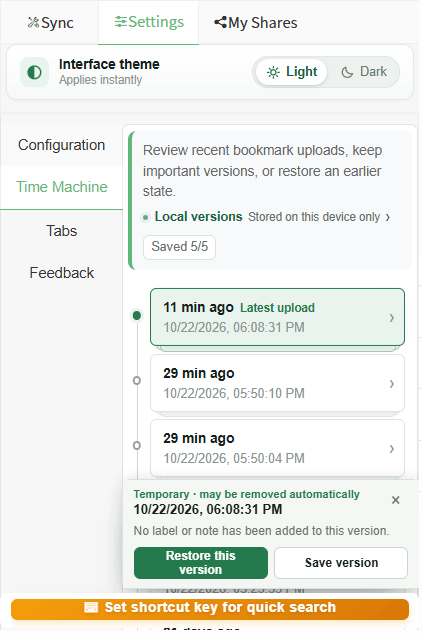
Time Machine lets you inspect recent bookmark versions and restore a chosen state.
A cloud copy and version history solve different problems. Cloud data enables access and synchronization; version history provides a way back after a bad change. Before your first sync, follow the bookmark backup guide and export an HTML copy as well.
4. Extras: do sharing and tab controls solve a real problem?
More features do not automatically make a tool more suitable. The useful question is whether a feature removes work from your actual routine.
Bookmark UniSync later added tab controls that can close pages after they exceed a maximum count or time limit. This is not the core of bookmark syncing, and it does not turn the product into a complete tab manager. But during long-term use, we noticed that bookmarks and tab overload often belong to the same workflow: people keep dozens of “read later” pages open, memory use grows, and only then do they organize the useful pages into bookmarks.
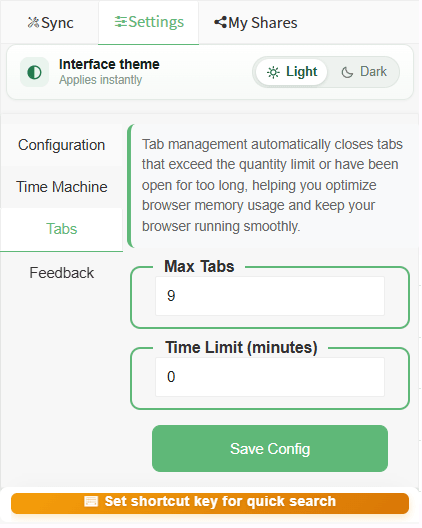
Maximum tab count and time limits can reduce pages left open indefinitely.
Sharing grew from another recurring request. At first, most people synchronized bookmarks only for themselves. Later, users began asking whether a carefully organized folder could be sent directly to a colleague. Instead of copying every URL, you can create a share link. When a password is configured, visitors must enter it before viewing the bookmarks.

My Shares provides one place to manage created shares and check bookmark and view counts.
If you only need private cross-browser sync, neither extra is essential. They become valuable when you also want to control temporary tabs or send a curated resource list. See the bookmark navigation and sharing guide for the workflow.
Who should choose a standalone bookmark manager?
A standalone manager is the better fit when you:
- attach several tags and detailed notes to links;
- collect papers, reporting and research material;
- need full-text search or page snapshots;
- are comfortable finding links in a separate app;
- care more about knowledge organization than matching browser bars.
Raindrop.io, Linkwarden, Karakeep and Linkding represent different approaches. Some emphasize a polished hosted service, others archiving or self-hosting. Compare search, preservation, collaboration and maintenance cost—not only whether they can import a Chrome HTML file.
Who should choose native bookmark sync?
Native bookmark sync is the better fit when you:
- use Chrome for work and Edge or Safari elsewhere;
- want links to remain in the browser's built-in bookmark bar;
- do not want to maintain WebDAV, Nextcloud or your own server;
- already have a useful folder structure;
- need ongoing automatic sync rather than occasional imports;
- want version recovery after mistakes.
Bookmark UniSync is closer to this category. Chrome and Edge use browser extensions; Safari on macOS requires the companion Mac app. Safari follows a different technical path from Chromium browsers, as explained in why Safari bookmark sync is harder.
Can you use both?
Yes, but give each tool a clear boundary.
A practical setup is:
- keep daily sites and work entry points in the native bookmark bar;
- keep research, read-later material and content needing full-text search in a standalone manager;
- do not let two tools modify the same bookmark folder in both directions;
- export a backup before a large migration or merge.
This prevents one link from being copied into the browser bar, a manager inbox and a read-later list until it becomes harder—not easier—to find.
Seven checks before installing a bookmark tool
- Do I need a separate library or native bookmark-bar sync?
- Must it connect Chrome, Edge and Safari?
- Will nested folders remain intact?
- Is this a one-time import or ongoing synchronization?
- Can I restore an earlier version after a bad overwrite?
- Must I deploy a server or configure WebDAV?
- Do I genuinely need sharing, page archiving or tab controls?
Once the first question is clear, most of the decision becomes easier.
Frequently asked questions
Are bookmark managers and bookmark sync tools the same thing?
No. A bookmark manager generally stores links in its own app or web library and focuses on organization, search and archiving. A sync tool keeps bookmarks consistent between browsers or devices. Some products combine both, but their primary entry point and workflow can still differ.
Can Chrome's built-in sync send bookmarks to Edge and Safari?
Not directly. Chrome Sync mainly works between Chrome installations signed in to the same Google account. You can periodically export and import bookmarks to transfer changes to Edge or Safari manually. For ongoing automatic synchronization, use a cross-browser bookmark sync tool.
Does native bookmark sync preserve folders?
It depends on the tool. Verify that it handles folders, nested levels, renames and moves—not only individual URLs. Export each browser's bookmarks before connecting them so an unwanted merge can be reversed.
Why does Safari usually require a macOS app?
Safari places tighter limits on bookmark-database access than Chromium browsers. A third-party tool that writes to native Safari bookmarks on a Mac generally needs a macOS application rather than only a conventional browser extension. Safari on iPhone and iPad also depends on the iCloud path.
Do more bookmarks automatically mean I need a bookmark manager?
No. Volume is not the only criterion. If you have thousands of bookmarks but rely on folders and the native bar, cross-browser sync and recovery may matter more. If you need tags, full-text search and page archiving, a standalone manager is the stronger fit.
After more than a year, we would rather explain who it is not for
Bookmark managers are built for independent link libraries. Native bookmark sync is built for keeping the same browser bookmarks in Chrome, Edge and Safari. The choice depends on whether you want to change your collection workflow or simply remove the gap between browsers.
After operating Bookmark UniSync for more than a year, we are less interested in covering every bookmark workflow and more focused on making its scope clear. Choose a standalone manager when you need detailed tagging, full-text search, snapshots and knowledge management. Choose native sync when you already like the browser bookmark bar and only want your bookmarks to stay in the same familiar place across computers and browsers.
Long-time users may already know the home screen, Time Machine, sharing and tab controls. This article is not a tour of buttons they have seen before. It explains why the product evolved this way: sync status should be visible, mistakes should be recoverable, organized material should be shareable, and extra features should not undermine the original goal—keeping bookmarks where you already use them.
Whether you are new or have used the product for a year, the first step should not be clicking Sync. Export an independent backup first. We have repeated that advice for more than a year, and it has not changed. If a trial, migration or reorganization produces the wrong result, you still have a way back.