Merge Bookmarks Before Syncing: Bookmark UniSync Adds Cross-Browser Bookmark Merge

You may use Chrome at home, Edge at work, and still have old bookmark HTML exports from previous computers. The stressful part is not whether those files can be imported. It is wondering whether an import will mess up the bookmark bar you already rely on, create hundreds of duplicates, or bury an important work link where you cannot find it later.
If you want reliable bookmark sync, especially cross-browser bookmark sync between Chrome and Edge, the first step should not feel like a gamble. It should give you one clean baseline that you can understand, review, and roll back from.
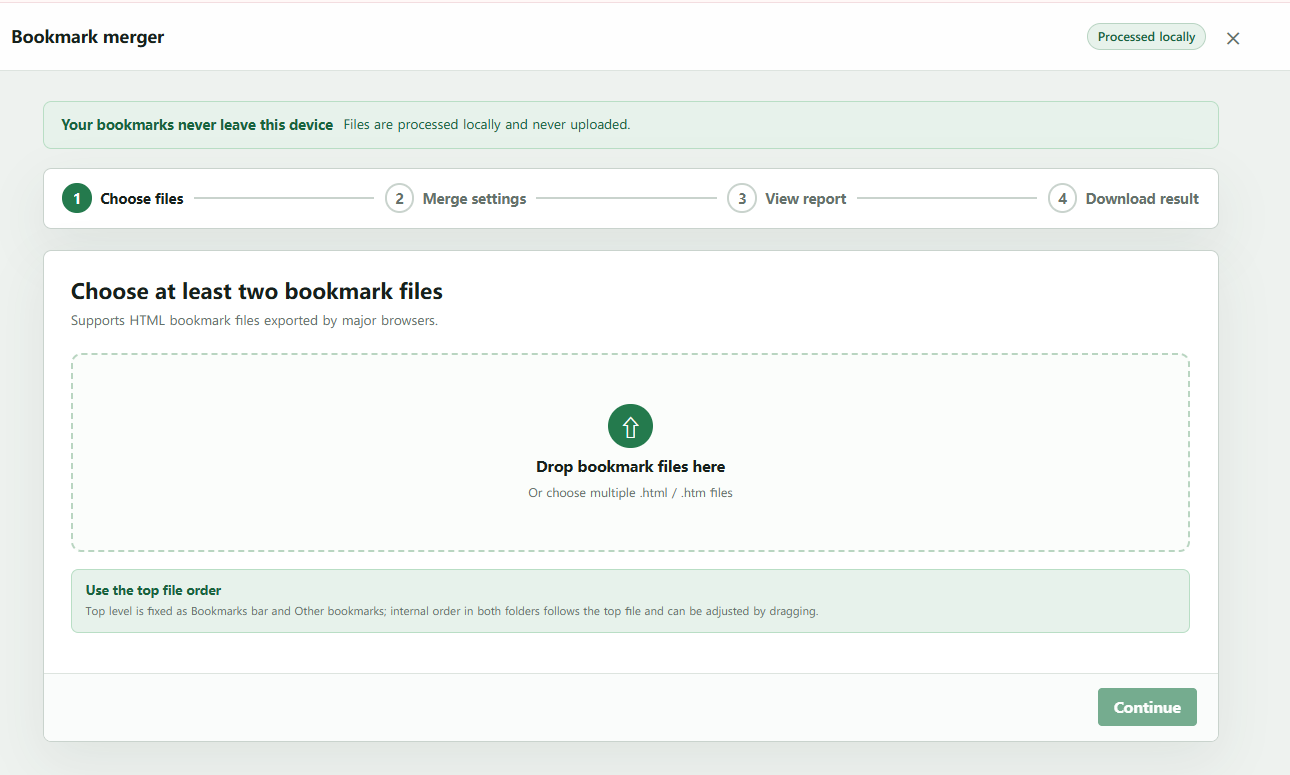
Bookmark UniSync now includes a local bookmark merge tool to make that first step feel safer. You add at least two browser-exported HTML files, review what will be kept and what will be removed, and only then decide whether to apply the result to the current browser or sync it to other browsers. The real value is not another button in the extension. It is being able to clean up years of scattered bookmarks without feeling like you are about to lose something.
What changes after you use it
Most people do not avoid bookmark cleanup because they enjoy clutter. They avoid it because bookmarks are hard to judge in bulk. Some links are clearly outdated, some look duplicated, and some may be the one URL you will need again during a project, tax season, travel planning, or a client handoff.
Local bookmark merge is meant to reduce that uncertainty. Before the merge, you know which files are going in. After the merge, you can see how many bookmarks remain, how many duplicates were removed, and which folders were combined. You are no longer hoping the browser import did the right thing; you are making the decision with a visible result in front of you.
Once old Chrome bookmarks, Edge bookmarks, and backup files become one clear baseline, cross-browser bookmark sync becomes much easier to trust. You are not syncing a pile of history. You are syncing a collection you have already cleaned up and can keep using with confidence.
Why importing one file after another is not enough
Browser import tools are useful when you restore one backup. They are much less useful when you need to clean up several years of bookmarks from multiple browsers.
Imagine you have three files:
- Home Chrome: 800 bookmarks;
- Office Edge: 500 bookmarks;
- Old laptop backup: 1200 bookmarks.
If you import them one by one, the same website may appear two or three times. Folders such as "Work", "Docs", and "Read Later" may also be duplicated. The browser usually tells you the import is complete, but it does not explain which URLs were duplicated or which folders were merged.
That is the difference between bookmark merge and bookmark sync:
- Merge turns multiple bookmark backups into one clean set;
- Sync keeps that cleaned set consistent across browsers and devices.
For first-time cross-browser sync, the better order is usually: merge first, then sync. The next time you open a new browser or a new computer, the result should feel familiar and predictable instead of like another cleanup project.
Four steps to merge local bookmarks before syncing
Step 1: Export bookmark HTML files
Use the bookmark manager in Chrome, Edge, or another browser to export bookmarks as .html or .htm files. This simple step gives you a fallback: whatever you do next, the original bookmarks are still there. Keep the files unchanged and give them clear names, for example:
chrome-home-2026-08-26.html
edge-office-2026-08-26.html
old-laptop-bookmarks.html
Bookmark UniSync has currently been tested and verified with real bookmark files exported from Chrome and Edge.
Support note: files exported by Firefox, Brave, and other browsers are not yet fully tested. Safari bookmark exports are not supported yet. Before using unsupported sources for important migrations, keep the original backups and wait for confirmed support.
If a supported file cannot be parsed completely, the tool stops and reports an error instead of silently dropping part of your bookmarks. For an important migration, an honest stop is better than a result that looks successful but is missing links.
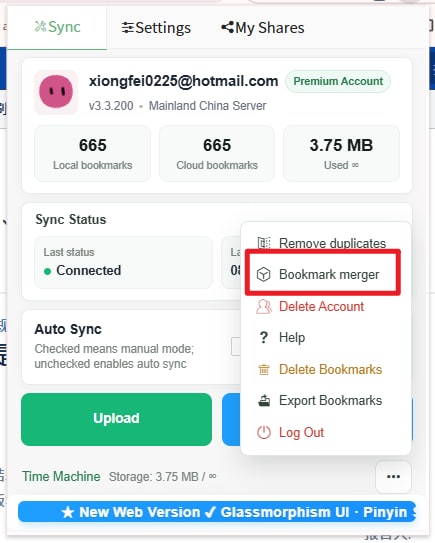
Step 2: Open Bookmark Merge and select files
Open the Bookmark UniSync extension, choose Bookmark Merge from the "More" menu, and select or drag in at least two HTML bookmark files.
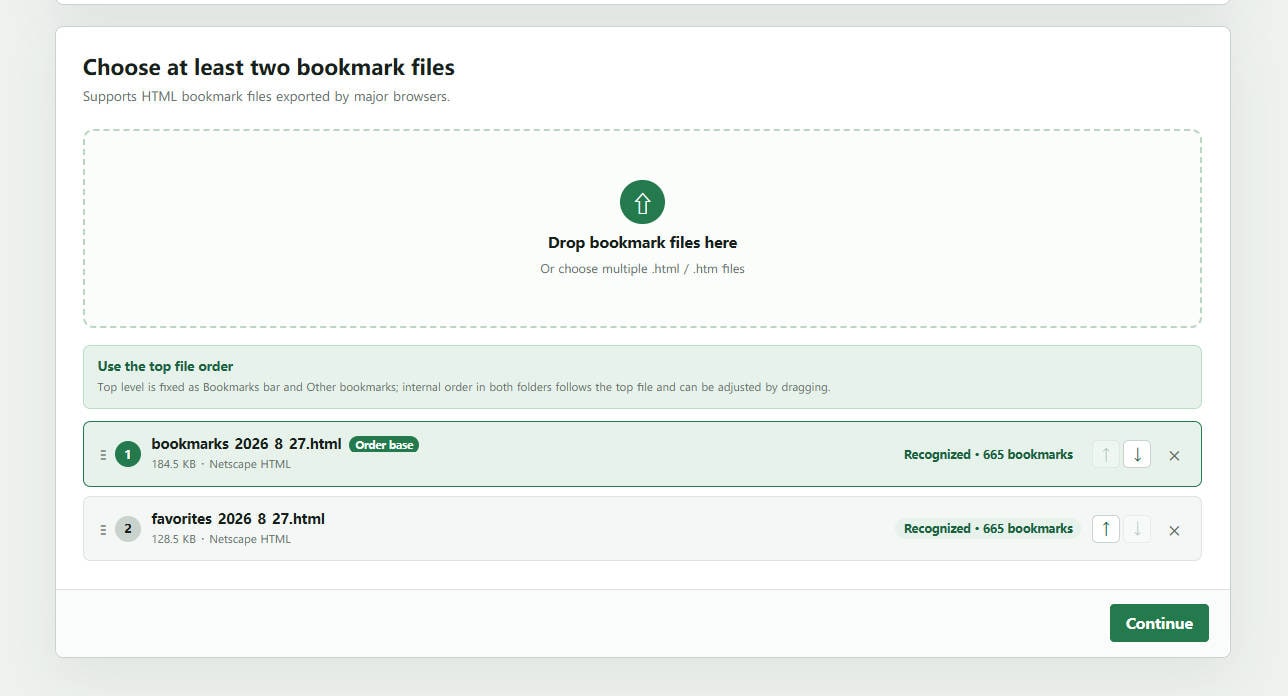
After reading the files, the page shows the file name, size, and detected bookmark count, so you can confirm that these are the backups you actually want to organize. If UTF-8 decoding fails, the tool also tries GB18030 for older Chinese bookmark backups.
Step 3: Set the order and deduplication rules
The first file in the list is the order baseline. This is not just a technical detail; it protects the layout you already know by habit. You can drag files or move them up and down.
This order matters:
- Bookmarks and folders in the first file keep their relative order;
- Matching folders from later files are merged into the same path;
- New bookmarks and folders from later files are appended in file order;
- The same rule applies to every nested folder level.
For example, if the bookmark bar layout in your home Chrome browser is the one you use most, put that file first. New content from office Edge and old backups will be added on top of that structure instead of replacing it. After cleanup, your browser should still feel like yours, only with fewer duplicates and more useful links recovered from older backups.
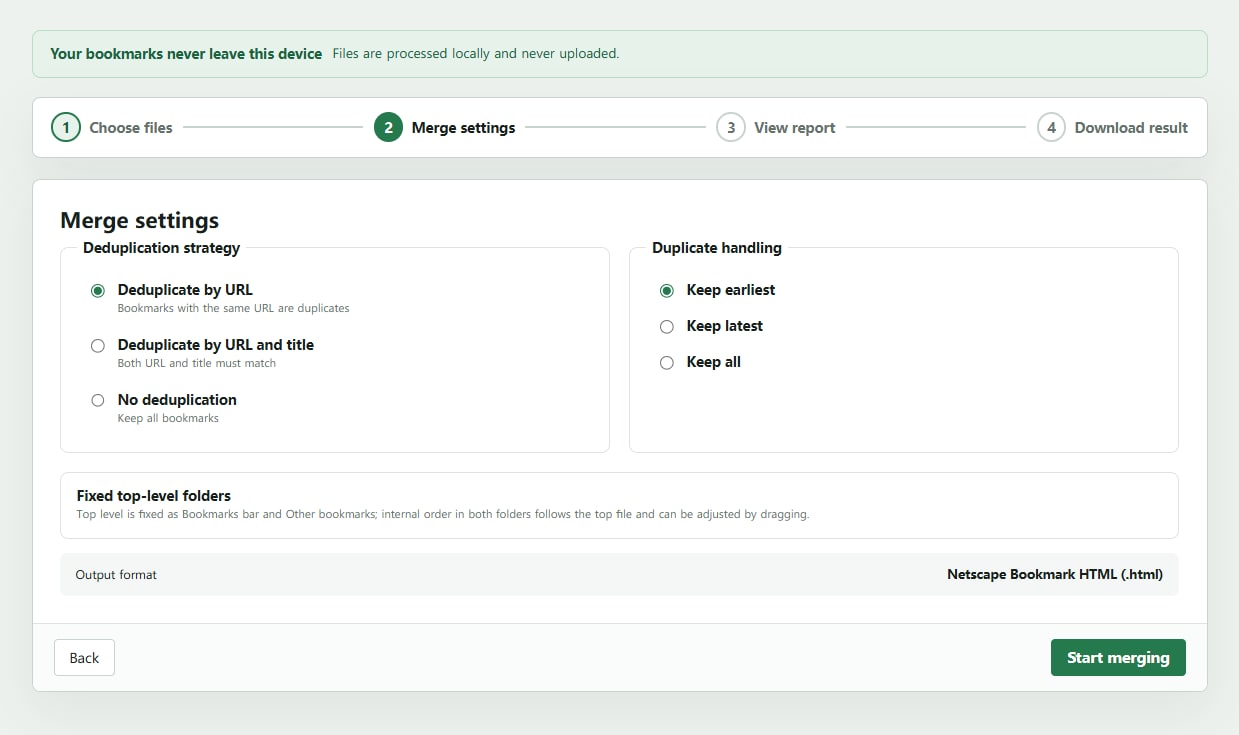
Then choose a deduplication strategy:
| Strategy | Best for |
|---|---|
| Deduplicate by URL | Default; keep one copy of the same URL |
| Deduplicate by URL and title | Keep separate entries when the same URL has different titles |
| Do not deduplicate | Merge folders but keep all bookmarks for later review |
If deduplication is enabled, you can keep the earliest entry, keep the latest entry, or keep all duplicates. Those choices exist so you can match your comfort level: stay conservative, prefer newer titles, or keep everything until you have reviewed the folders.
Step 4: Save the local version, then apply or sync
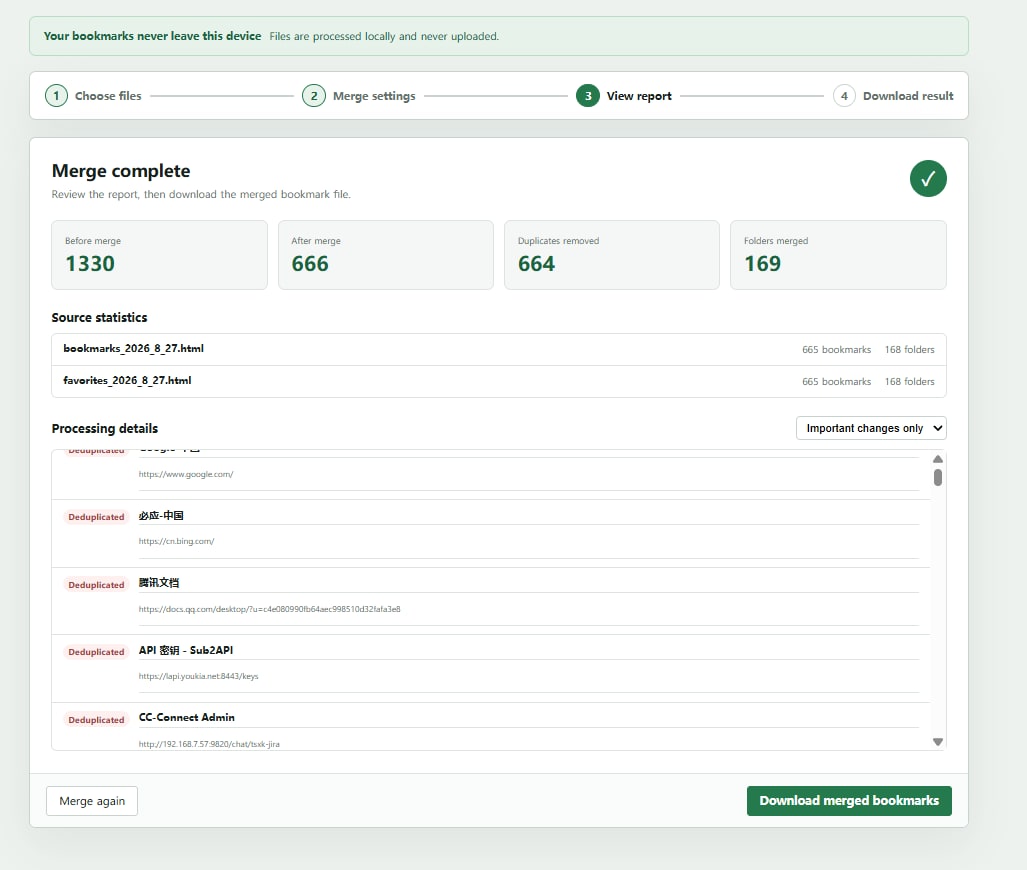
After merging, the page does not just say "done." It lays out what happened:
- Bookmark count before merge;
- Bookmark count after merge;
- Number of duplicates removed;
- Number of folders merged;
- Per-file source statistics;
- Details for deduplication, retained duplicates, and folder merges.
After confirmation, the tool saves a local bookmark version first, so you have a recoverable record before applying or syncing the result. That turns the process from a one-way import into a cleanup step you can inspect and back out of.
Then choose based on your sync setup:
- Auto sync enabled: the page asks whether to sync the merged result to other browsers;
- Not ready to sync yet: apply the result to the current browser first, check important folders, bookmark order, and work links, and sync later.
The tool also downloads a merged HTML file named like:
unisync-merged-bookmarks-2026-08-26.html
It is a UTF-8 standard Netscape Bookmark HTML file. You can keep it as an independent backup or copy it to another device and import it manually through Chrome, Edge, or another supported browser. Downloading the file does not automatically import bookmarks on other devices. What you get is a portable cleaned-up result, not a temporary state locked inside one tool.
What the tool does during merge
These rules are technical, but the intent is simple: keep the structure that feels familiar, reduce obvious clutter, and avoid deleting links that may still matter.
It normalizes two top-level folders
The exported result always uses two top-level folders:
Bookmarks Bar
Other Bookmarks
Chrome's "Bookmarks Bar" and Edge's "Favorites Bar" are mapped into "Bookmarks Bar". Chrome's "Other Bookmarks" and Edge's "Other Favorites" are mapped into "Other Bookmarks". Root-level content that cannot be identified as a special root is also placed under "Other Bookmarks".
It matches folders by full path
Folders are matched by their full folder path, not just by the last folder name.
For example:
Bookmarks Bar / Work / Docs
Bookmarks Bar / Personal / Docs
Both end with "Docs", but they are different folders because the full paths are different. This avoids mixing work resources with personal bookmarks, so the cleanup does not blur categories you created for a reason.
URL deduplication stays conservative
When deduplicating by URL, the tool trims whitespace, normalizes host casing, and removes a trailing / from non-root paths. It does not assume these are the same page:
- HTTP and HTTPS;
- Different ports;
- Different query parameters;
- Different fragments.
This conservative rule avoids deleting a bookmark just because two URLs look similar. That matters because a parameterized work URL or a specific page fragment may be the exact entry you need later.
If counts do not match, the merge stops
Old bookmark files may have been edited by other tools. To avoid silent loss, the parser compares the link count in the source file with the number of parsed bookmarks. If the numbers do not match, it reports an error instead of producing a misleading "successful" result.
Privacy: files stay on your device
Bookmarks can reveal work systems, client resources, research topics, shopping habits, and personal interests. That is why Bookmark UniSync does not make "upload files to a server and merge there" the default.
The bookmark merge page handles these steps in local browser memory:
- Format detection;
- HTML parsing;
- URL deduplication;
- Folder merge;
- Report generation;
- New HTML export.
Your original bookmark files are not uploaded to the UniSync backend during merge. Only when you confirm the result and choose to sync will the merged result enter the normal UniSync sync flow. Your bookmarks remain yours, and the pace of cleanup stays under your control.
Good use cases
Moving to a new computer
When you have several backups from old computers and browsers, merge them into a complete set first instead of gambling on one file that looks newest. A new computer should open with a bookmark bar that feels familiar, not empty or chaotic.
Starting cross-browser bookmark sync
If Chrome and Edge both have different bookmark collections, do not let one overwrite the other. Export both, merge and review the result, then use that cleaned set as the starting point for sync. The first sync feels better when you know exactly what you are sending to every browser.
Cleaning years of bookmark backups
Use your most familiar file as the order baseline, bring back useful links from older files, and remove duplicate URLs. Old backups stop being files you are afraid to delete and become a bookmark library you can actually use.
Keeping same-name folders separate
Full-path matching prevents unrelated folders such as "Docs", "Tools", or "Resources" from being merged only because they share the same final name. The result keeps your own mental categories instead of flattening them into a generic pile.
Safety checklist before you use it
- Keep every original HTML file unchanged;
- Put the file with your preferred layout first;
- Start with "deduplicate by URL + keep earliest";
- Review the merge report and confirm the local version is saved;
- If you are not ready to sync, apply to the current browser first;
- Check important folders, ordered bookmark bars, parameterized URLs, and work links;
- Sync to other browsers only after review;
- Keep the downloaded HTML file as a backup.
Frequently asked questions
What is the difference between bookmark merge and bookmark deduplication?
Bookmark merge works on multiple HTML backups: it parses several files, merges folders, and exports one new file. Bookmark deduplication is better for finding duplicates inside the current browser or an existing sync set.
How many files do I need?
You need at least two valid .html or .htm bookmark files. If you only have one file, you can import it directly into a browser or use a deduplication tool to clean that single set.
Which file keeps the folder order?
The first file in the list is the order baseline. The relative order inside "Bookmarks Bar" and "Other Bookmarks" is preserved first, and new content from later files is added afterward.
Does merging immediately change my current browser bookmarks?
No. The merge process itself does not modify your current browser. After you confirm the result, Bookmark UniSync saves a local version and lets you choose whether to apply it locally or sync it to other browsers.
Can I use Firefox, Brave, or Safari exports?
Chrome and Edge exports are currently tested and verified. Firefox, Brave, and other browser exports are not yet part of the supported range, and Safari exports are not supported yet.
Final note: merge first, then sync
Bookmark sync keeps one good set of bookmarks consistent over time. Bookmark merge helps you create that good set from years of scattered browser backups.
If your bookmarks are spread across multiple computers and browsers, install the Bookmark UniSync browser extension, open "More -> Bookmark Merge", and start with a local merge. Merge first, then sync. The next time you open Chrome, Edge, or a new computer, your bookmarks should feel cleaner, more complete, and more like your own setup again.
Related links