Recover Lost or Duplicate Bookmarks

If bookmarks disappeared after a deletion or sync, or if duplicates suddenly filled your folders, pause syncing and editing on your other devices first. Do not run another sync or delete a large batch. The safe order is to save the current state with Save version, find the last good backup in Version history, and restore it with Restore this version. For duplicates, group exact URL matches and review them instead of deleting by title alone.
This guide is for Bookmark UniSync users who sync Chrome, Microsoft Edge, Firefox, or macOS Safari and need to recover deleted bookmarks, roll back a bad sync, or clean up duplicate bookmarks.
The three-step recovery plan
- Preserve the current state: Open Quick access → Version history, then click Save version on the latest entry.
- Restore the right point in time: Find the last version from before the problem and click Restore this version.
- Review duplicates safely: Use bookmark deduplication to group exact URL matches, then check titles and folder paths before deleting anything.
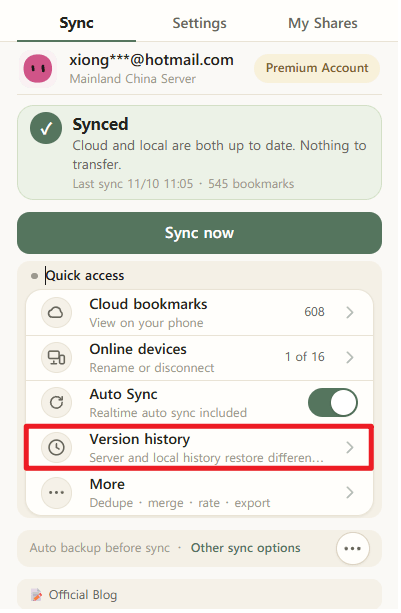
English UI shown. The control positions are the same in localized versions.
First, identify what went wrong
The right recovery path depends on the problem. Match your situation before changing anything:
| Situation | Best next step |
|---|---|
| One bookmark or a whole folder was deleted | Restore the last good point in Version history from before the deletion |
| Bookmark counts or folders changed after syncing | Pause edits on other devices, compare local and server timestamps, then restore |
| Bookmarks are missing on a new computer or browser | Check the account, device, and cloud copy before choosing local or server history |
| Many bookmarks are duplicated | Save the current version, then group and review duplicates by exact URL |
| Two imported HTML files created duplicates | Preview the result in the bookmark merger before applying it to the browser |
In every case, the first action is to preserve what you have now. Restoring a version replaces the current bookmark state, so saving the latest state gives you a way back if you choose the wrong recovery point.
Step 1: Save the current state with Save version
In Bookmark UniSync v3.3.232:
- Open the Bookmark UniSync extension popup in your browser.
- Select Version history under Quick access.
- Find the most recent uploaded version at the top of the list.
- Click Save version to keep that point as a permanent version.
- Confirm that it is saved before searching for an older recovery point.
Paid users can keep up to 10 permanent versions. Useful moments to save include after a major folder cleanup, before merging bookmark files, before changing computers, and immediately before restoring an older version.
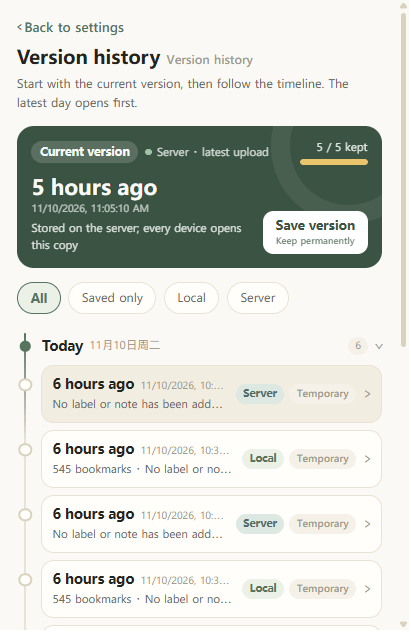
English UI shown. Save the current state before restoring an older version.
Do not do these yet: Do not continue syncing across several browsers, bulk-delete duplicate bookmarks, or edit the same folders on another device. Bookmark UniSync creates records around sync activity, but every extra operation adds another point in time and makes the last good version harder to identify.
Step 2: Restore the right point in Version history
Bookmark UniSync provides two recovery sources. Server history is designed for recovery across clients, while local history is the on-device fallback. Their retention and plan rules differ.
| Comparison | Server history | Local history |
|---|---|---|
| Retention | Paid or active trial: last 30 days, up to 120 records; free: latest 10 records | Last 90 days of local activity |
| Can free users restore? | Not from server history | Yes |
| Where it restores | Restore the selected version and sync it to other clients | Restore on this device first, then upload and sync to others |
| Permanent versions | Paid users can keep up to 10 | Not applicable |
| Best for | A bad state has reached several devices | The cloud copy is unavailable or only this device needs recovery |
Free users still have a recovery path. The free plan can restore from 90 days of local history. The server retains the latest 10 records for free accounts, but free accounts cannot restore from server history. Paid plans and active trials can restore server history.
How to choose the correct version
- Estimate when your bookmarks were last complete and correctly organized.
- Work backward from the newest record to the last good point before the problem.
- Confirm again that the current state has been preserved with Save version.
- Click Restore this version on the target record.
- Check the bookmark bar, folder hierarchy, and several frequently used links.
- Only after this device looks correct should you sync the restored state to other browsers.
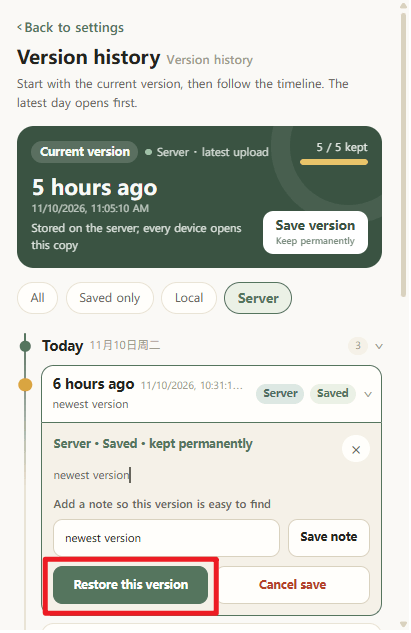
English UI shown. Verify the timestamp before selecting Restore this version.
The feature works the same in newer releases, although the layout or button labels may move slightly. If your screen differs from these images, look for Version history, Save version, and Restore this version.
Step 3: Remove duplicate bookmarks by URL, not title
Duplicate bookmarks usually appear because:
- the same page was saved separately in Chrome, Edge, or Safari;
- one URL was stored in several folders;
- an old HTML file was imported before cloud bookmarks were synced back;
- two devices saved the same page at different times;
- the page title changed while the URL stayed the same.
Matching titles do not prove that two bookmarks are the same, and different titles can still point to one URL. A safe duplicate bookmark cleanup starts with exact URL matching, then uses the title and folder path for a human review.
Safe duplicate cleanup order
- Preserve the current state with Save version.
- Open Bookmark UniSync's bookmark deduplication tool.
- Group bookmarks that have exactly the same URL.
- Review the title, full URL, and folder path in each group.
- Select only the copies you are certain you no longer need.
- After deletion, inspect at least 5 frequently used folders before syncing the result elsewhere.
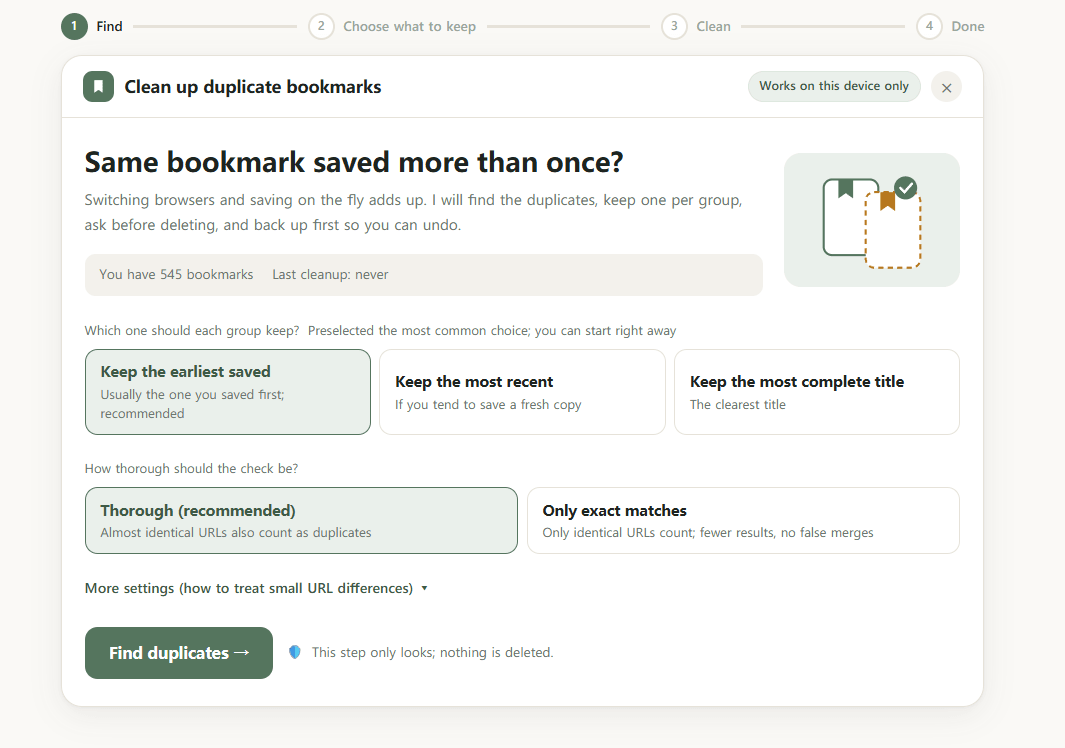
English UI shown. Review each URL group and folder path before deleting copies.
If the duplicates came from two separate HTML bookmark exports, do not import both files directly into the browser. Use the bookmark merger to preview what will be kept or removed before applying the merged result.
For a deeper walkthrough, read How to Remove Duplicate Bookmarks.
Missing bookmarks on a new computer or browser? Check these three places
1. Confirm the account and device
Make sure the new browser is signed in to the same Bookmark UniSync account and that the original device still appears in your device list. Running another sync under the wrong account will not recover the original collection.
2. Check whether the cloud copy is still complete
If the cloud bookmark page shows the expected count, folders, and frequently used links, the data is still on the server and the problem is probably limited to the new browser's local state. Save the new browser's current state, then restore the verified cloud version locally.
3. Check the old device's 90-day local history
If the target version exists only in local history on the old device, restore it there first. Then upload the restored state and sync it to the new browser. Local history does not automatically travel to another device.
What if the version is no longer in history?
Stop syncing and deleting, then contact the support team for technical recovery. Include these details to reduce follow-up questions:
- the email address used for the Bookmark UniSync account;
- the approximate date and time when the bookmarks were last correct;
- the affected device, operating system, and browser;
- what happened immediately before the loss, such as a sync, import, merge, or bulk deletion.
The support address is listed on the website's Contact page. Do not post your account email or bookmark contents in a public comment.
Post-recovery checklist
- The total bookmark count is close to what you expect.
- The bookmark bar and main folder hierarchy are back.
- Important work, study, and personal folders are present.
- At least 5 important links open the correct URLs.
- The current device is correct before other browsers sync.
- Any remaining duplicates are reviewed group by group, not bulk-deleted manually.
Make the next recovery easier
- Save a permanent version before a large cleanup, bookmark merge, or computer change.
- Save another version after organizing an important folder tree.
- Stop edits on other devices as soon as a sync result looks wrong.
- If both sides changed, compare versions instead of choosing one side by guesswork.
- Open Version history periodically and confirm that important points remain within retention.
Frequently asked questions
Can I recover one bookmark after deleting it?
Yes. Deleting a bookmark does not erase history versions that were already created. Stop further syncing and editing, then restore a server or local version from before the deletion. If the deletion has reached multiple devices, restoring a complete known-good version is safer than recreating the bookmark separately in every browser.
Can free users recover lost bookmarks?
Yes. Free users can restore from the current device's 90-day local history. The server keeps the latest 10 records for free accounts, but free accounts cannot restore directly from server history. Paid plans and active trials can use server history recovery.
How much server history does the paid plan keep?
The paid plan keeps server history for the last 30 days, up to 120 records. Every record still within that retention window can be restored, and up to 10 important points can be kept as permanent versions.
Does restoring an old version overwrite my current bookmarks?
Yes. A restore replaces the current bookmark state. Before restoring, click Save version on the latest version. If you choose the wrong target, you can then return to the state you saved just before recovery.
What is the difference between local and server history?
Local history stays on the current device, is available to free and paid users, and covers the last 90 days. After a local restore, upload the recovered state to sync it elsewhere. Server history is stored in the cloud; paid users and active trials can directly restore up to 120 records from the last 30 days and distribute the result to other clients.
Can I recover bookmarks without a permanent saved version?
Usually, yes. You can restore any target point that remains inside server retention or the 90-day local history window. If the version has aged out of both, stop making changes and contact support to ask whether technical recovery is possible.
Conclusion
When bookmarks are lost or duplicated, the most important move is not another sync. It is to save the current version, restore the correct point in time, and clean up duplicates afterward. That order preserves a way back and prevents one mistake from spreading across Chrome, Edge, Firefox, and Safari.
Start by opening Quick access → Version history and selecting Save version. Once the current state is protected, you can recover the version you actually need.
Related reading