What Actually Happens When You Sync Your Bookmarks?

You add a bookmark in Chrome. A moment later, it appears in Edge or Safari on another computer. That feels simple, but several things happen in between: the browser extension reads your bookmark data, sends it to the sync service, and another client writes the updated structure into its local browser.
The important part is that synchronization changes real browser data. It is not just a list displayed in a separate app. This guide explains what Bookmark UniSync sends, where the data goes, and when you should make a backup before clicking a sync button.
The short version
When you use Bookmark UniSync:
- The client reads your bookmark titles, URLs, folders, and structure from the browser.
- It converts that information into data the service can process and sends it to the UniSync server under your account.
- The server keeps a cloud copy so the same bookmarks can reach your other supported browsers and devices.
- An online client can receive new changes through real-time push. A device that was offline may need a manual sync after it reconnects.
- When you choose Sync from cloud, the cloud version replaces the local bookmarks in that browser.
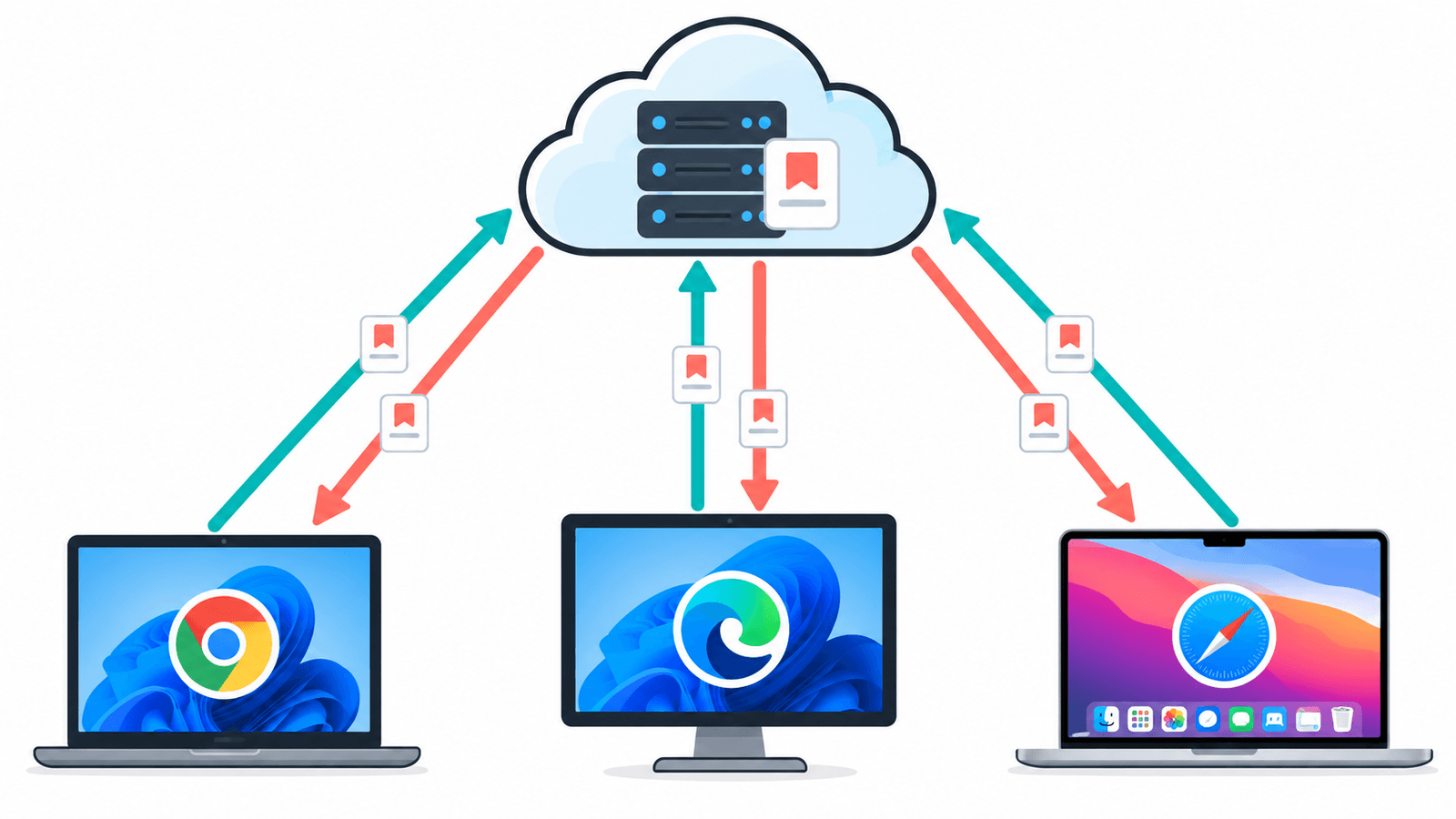
This server copy is also what makes cloud access and version recovery possible. It also means Bookmark UniSync is not a device-only or end-to-end encrypted sync system.
What is uploaded?
The sync service needs the contents and structure of your bookmarks to reproduce them in another browser. That includes information such as:
- bookmark titles and URLs;
- folder names and nesting;
- bookmark order and structure;
- the account and browser information needed to associate the upload with the correct user and client.
A bookmark list can contain sensitive clues even when it has no passwords in it. Work dashboards may reveal your employer, saved medical pages may reveal a personal concern, and project links may show what you are researching. Treat a bookmark sync account as an account that contains personal data, and use a password you do not reuse elsewhere.
Where do the bookmarks go?
Bookmark data is stored on the UniSync service under your UniSync account. That cloud copy provides the middle point between browsers: Chrome, Edge, Firefox, and macOS Safari do not share one native bookmark database, so a separate service is needed to carry changes between them.
Data is encrypted in transit with SSL. This protects the connection while information travels between the client and the service. It is not end-to-end encryption: the server stores bookmark data in a form the service can process for synchronization, history, backup, and cloud access.
That distinction matters. If your requirement is that a service provider must never be able to process your bookmark contents, Bookmark UniSync does not match that privacy model. A self-hosted or end-to-end encrypted system is the better fit. If your priority is syncing native browser bookmarks without maintaining your own server, the hosted model removes that setup work.
For more detail about account information, storage, use, and deletion requests, read the Privacy Policy.
Upload and “Sync from cloud” do different things
These two buttons have different consequences.
Upload copies the current browser state to the cloud
Uploading reads the bookmarks in the current browser and updates the cloud copy. It does not delete the local bookmarks you are looking at. However, it can replace the previous cloud state, so first check that you are uploading from the browser that has the version you want to keep.
Sync from cloud replaces the local browser state
Syncing from the cloud writes the cloud version into the browser and replaces its current local bookmarks. The confirmation dialog shows the number of bookmarks involved and warns about the overwrite before the operation begins.
This is useful when setting up a new computer or restoring a known cloud version. It is risky when the local browser contains newer bookmarks that have not been uploaded. Export those local bookmarks before continuing if you are not certain which copy is current.
What happens during real-time sync?
With real-time push enabled, a change made on one online client is sent through the UniSync service to the other online clients. Adding, renaming, moving, or deleting a bookmark can therefore change the native bookmark data in another browser.
Real-time push is not a scheduled background pull. If a computer is off, disconnected, or the extension is not running, it cannot receive the update at that moment. After that device comes back online, manually sync it before making more changes so you do not start from an old local copy.
Manual sync remains available when you want to decide exactly when data moves. Current plan availability for real-time push is listed on the pricing page.
What if a deletion or overwrite reaches every device?
Because synchronization carries changes between clients, an accidental deletion can also propagate. Bookmark UniSync keeps synchronization history so you can inspect and restore retained versions. Restoring a version replaces the current bookmark state, so check the selected version carefully and preserve the current state before restoring.
History is useful, but it should not be your only backup. Retention and the number of available versions depend on the current product rules and plan. A separately exported HTML file remains readable without your account, the service, or an internet connection.
The bookmark backup guide explains how to export that copy, and the sync history guide explains how version recovery works.
A safe first-sync routine
Before connecting a second browser or computer:
- Choose the browser that contains the cleanest and most complete bookmark collection.
- Export its bookmarks to an HTML file and store that file outside the browser profile.
- Upload from that browser and verify the cloud bookmark count.
- Export the bookmarks from the second browser too, especially if it contains unique links.
- Only then use Sync from cloud on the second browser.
- Check several important folders and recently added bookmarks before enabling real-time push.
If the result is not what you expected, pause changes on the other devices and restore from the exported file or a known history version. Continuing to edit several clients while investigating can spread the unwanted state further.
Three things worth remembering
Your bookmarks leave the browser. They are stored on the UniSync service so they can be delivered to another browser and recovered from history.
The connection is encrypted, but the system is not end-to-end encrypted. Do not use Bookmark UniSync if your threat model requires the server to be unable to process bookmark contents.
A cloud copy is not a substitute for your own backup. Before a first sync, migration, large reorganization, or recovery, export an independent HTML copy.
If the data shown in the product does not match what you expect, stop syncing on the other devices and contact support@ithuajiao.site before making more changes.
- 📧 Email Support: support@ithuajiao.site
- 🐦 X (Twitter): @flybear29030869